Connect smartphone to the Egrowr wifi access point by going to the smartphone wifi setting and selecting the Egrowr_xxxxxxxxx network.
The password requested is found by pressing on the Egrowr device key, then on the key to reach the second menu.

Keep the smartphone close to the Egrowr during this phase of configuration. Furthermore, the password is case sensitive. If the smartphone alerts that there is no internet connection, confirm to stay on current wifi.
Once the smartphone is connected to the Egrowr, open the app, go to the menu section, select "add device".
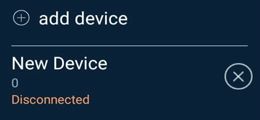
Then select the device that appeared in the list (new device). The smartphone should connect automatically to the Egrowr.
On the smartphone, press on the button "Setup Wifi" at the bottom of the screen, and wait for the wifi access points to be listed.
Select the prefered wifi, enter the required password, and press on "Join".
The Egrowr screen shows the following message:

Wait until the Egrowr confirms the connection is made.

On the Egrowr device, press for a few seconds on the key to enter the wifi mode selection menu, then select "cloud mode" by pressing on the key. Save changes by pressing on the key.
On the smartphone, reconnect it to the same wifi network as the Egrowr device (if not done automatically).
Return to the app, on the screen where the new device is, press on the IP address section at the bottom right.
The IP address to add can be found in the Egrowr's wifi menu (press once on the key of the Egrowr).

Back on the app, press on "show settings", enter the email account login and password (both found on the Egrowr box) then press on "connect" to connect to the Cloud.
The device will then be automatically assigned to this account.